Exercise: Fun with Unity
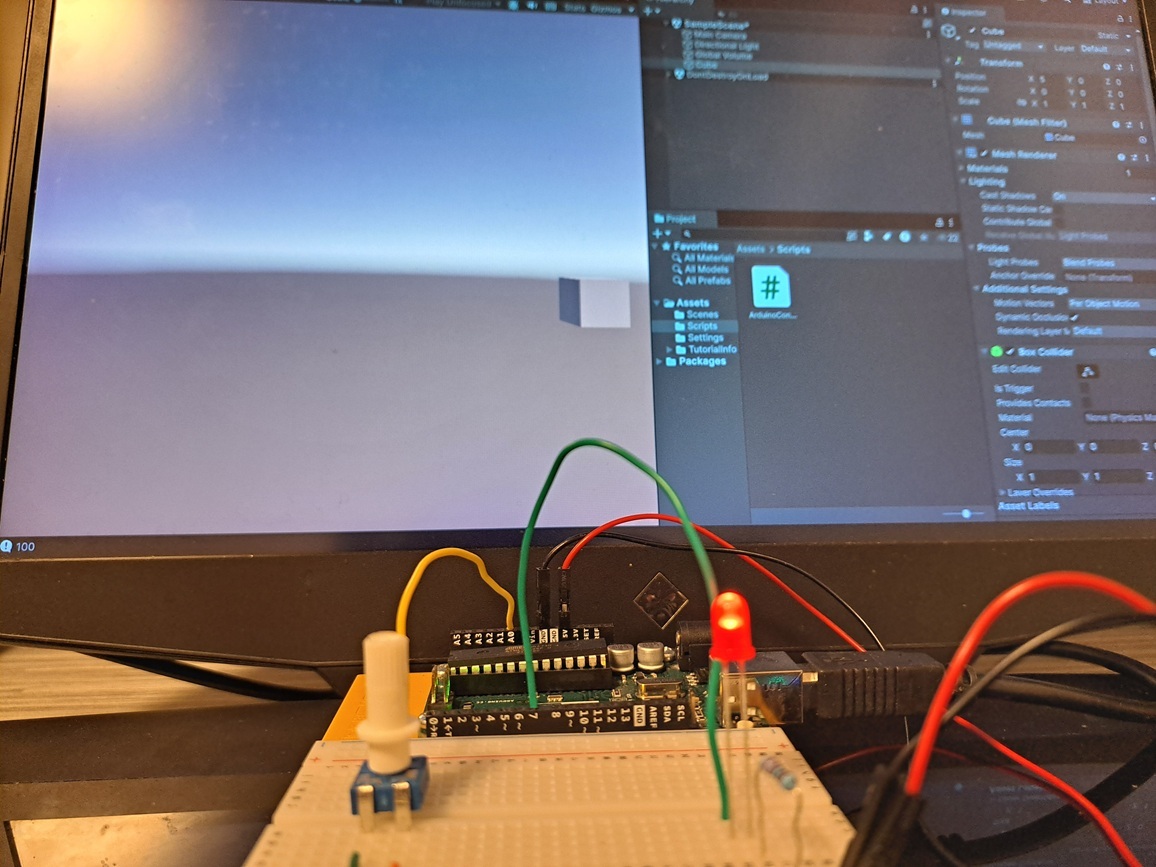
This exercise was a cool first introduction to linking Arduino to Unity and getting into the more game-y side of alt controllers and creating experiences.
The Circuit
The circuit for this was super simple - just an LED and a potentiometer
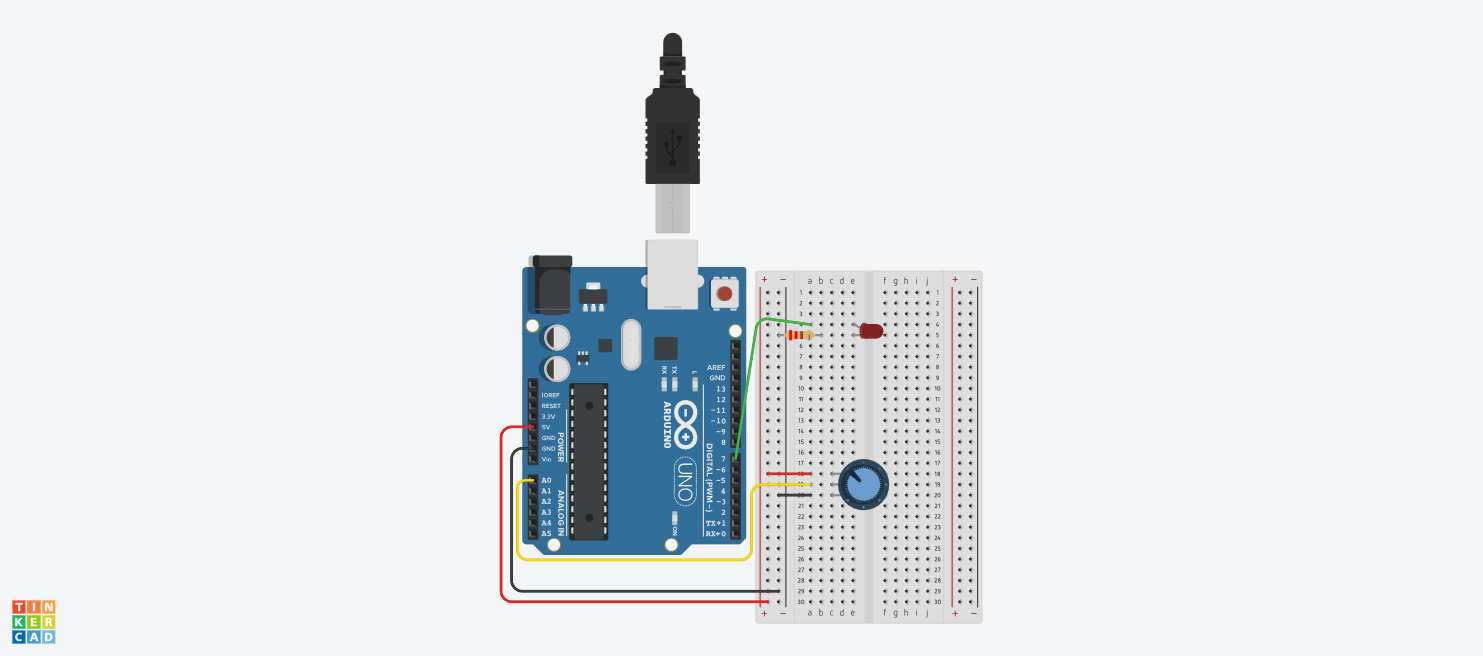
Parts List
| Name | Quantity | Component |
|---|---|---|
| U1 | 1 | Arduino Uno R3 |
| Rpot1 | 1 | 250 kΩ Potentiometer |
| D1 | 1 | Red LED |
| R1 | 1 | 220 Ω Resistor |
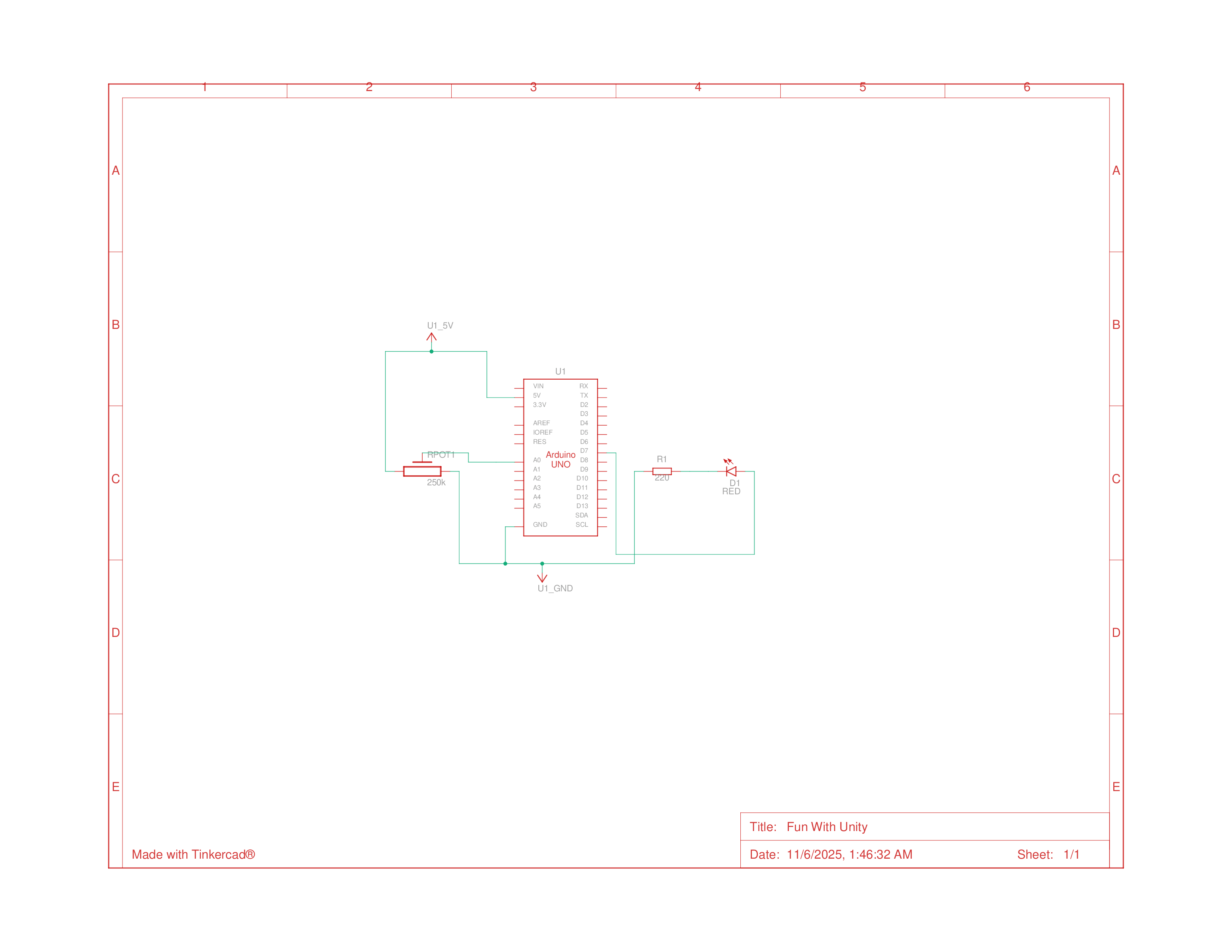
Schematics
Programming
This project was the most programming heavy that we’ve done so far, which I enjoyed. It was similar to the Tweak the logo project, where we communicated with the computer using the Serial Port, only this time, it was Unity reading the data instead of Processing.
Coding the Arduino
On the Arduino side, we wrote the potentiometer values to the Serial connection, as well as reading from the connection to turn on/off the LED.
1
2
3
4
5
6
7
8
9
10
11
12
13
14
15
16
17
18
19
20
21
22
23
24
25
26
27
28
29
30
31
32
33
34

int readData = -1;
long mappedData = 0;

void setup() {
  // initialize serial communication
  Serial.begin(9600);
  pinMode(7, OUTPUT);
  digitalWrite(7, HIGH);
}

void loop() {
  // read data
  readData = analogRead(A0);
  mappedData = map(readData, 0, 1023, 100, -100);

  // print data to serial for unity
  Serial.print(mappedData);
  Serial.print(",");
  Serial.print(readData);
  // Serial.print(",");
  // Serial.print("Hello")
  Serial.println();

  // check for data from unity
  if(Serial.available()){
    int data = Serial.read();

    // turn on/off LED depending on what Unity says
    if(data == '1') digitalWrite(7, HIGH);
    else digitalWrite(7, LOW);
  }
}
Coding Unity
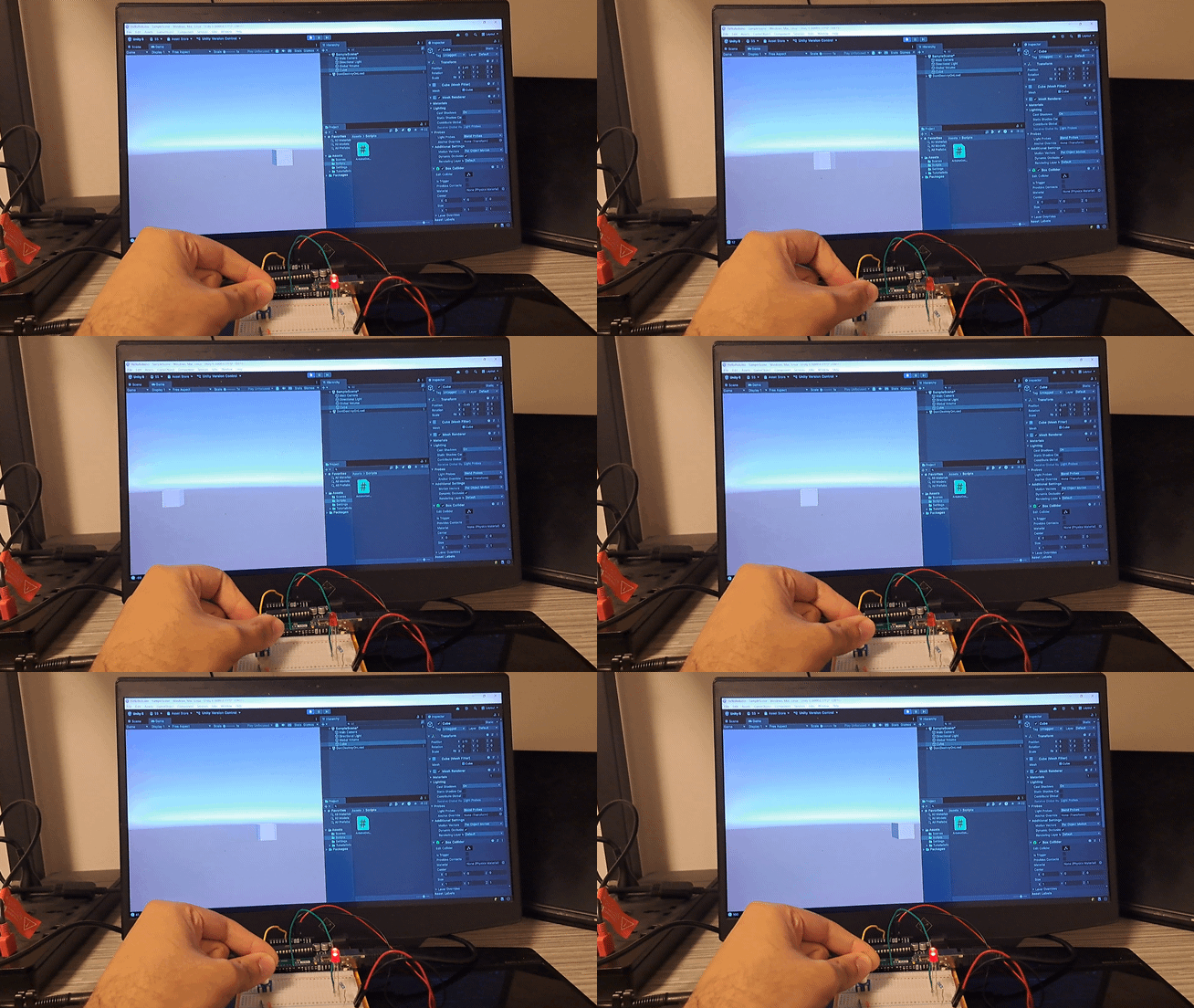
I then continued following the guide, and when I was done with it, I was able to move a cube around in Unity. After it was running and I knew what I was doing, I addressed a couple issues I noticed:
- There was noticeable lag between moving the potentiometer and Unity
- I thought that the way the cube moved didn’t quite fit the interaction with the potentiometer
- Because analog is imprecise, the cube would jitter in place if the potentiometer was left at a weird angle, which happened more often then not
To fix these things I did the following:
- I put reading data from the Serial port on it’s own thread. This made everything run more smoothly and eliminated the noticeable lag. Additionally, the Update loop always had the most recent potentiometer values, so the interaction also felt more responsive
- I stepped the values read to eliminate the jitter
- I lerped the values to smooth the motion of the cube
- I switched from Translating the cube’s position to just hard setting it based on the user’s input, which just felt like a better interaction mechanism.
Final code:
1
2
3
4
5
6
7
8
9
10
11
12
13
14
15
16
17
18
19
20
21
22
23
24
25
26
27
28
29
30
31
32
33
34
35
36
37
38
39
40
41
42
43
44
45
46
47
48
49
50
51
52
53
54
55
56
57
58
59
60
61
62
63
64
65
66
67
68
69
70
71
72
73
74
75
76
77
78
79
80
81
82
83
84
85
86
87
88
89
90
91
92
93
94
95
96
97
98
99
100
101
102
103
104
105
106
107
108
109
110
111
112
113
114
115
116
117
118
119
120
121
122
123
using System.IO.Ports;
using System.Threading;
using UnityEngine;

public class ArduinoController : MonoBehaviour
{
    SerialPort dataStream;

    // helper stream setup vars
    [Header("Serial Communication")]
    [SerializeField] private string serialPort = "COM3";
    [SerializeField] private int baud = 9600;

    [Header("Test Object")]
    [SerializeField] private Transform _transform;
    [SerializeField] private float _speed;

    [Header("Data Smoothing")]
    [SerializeField] float stepSize = 0.5f; // change threshold
    [SerializeField] float smoothFactor = 0.1f; // smoothing
    float smoothedX = 0f;
    private float lastX = 0f;

    // reading data on seperate thread
    private Thread readThread;
    private bool keepReading = true;
    private string latestData = "0";
    private object dataLock = new object();

    // Start is called once before the first execution of Update after the MonoBehaviour is created
    void Start()
    {
        // open communication with Arduino
        dataStream = new SerialPort(serialPort, baud);
        dataStream.Open();

        // Start reading serial data on a background thread
        readThread = new Thread(ReadSerial);
        readThread.Start();
    }

    // Update is called once per frame
    void Update()
    {
        // read latest values from Arduino
        string receivedString;
        lock (dataLock)
        {
            receivedString = latestData;
        }

        // Debug.Log(receivedString);

        // process arduino data
        string[] subStrings = receivedString.Split(',');

        if(subStrings.Length > 0 )
        {
            // get mapped data
            float xVal = float.Parse(subStrings[0]);
            xVal /= 100.0f;


            // step values for to remove jitter
            if (Mathf.Abs(xVal - lastX) > stepSize)
            {
                // change previous value
                lastX = xVal;

                // smoothing for natural motion
                smoothedX = Mathf.Lerp(smoothedX, lastX, smoothFactor);
                _transform.position = new Vector3(smoothedX * _speed, 0, 0);
            }
        }

        // write data back to arduino
        if (_transform.position.x < 0) dataStream.Write("0");
        else dataStream.Write("1");
    }

    void OnApplicationQuit() => CleanUp();
    void OnDestroy() => CleanUp();

    // release threads and close connection
    void CleanUp()
    {
        if (!keepReading) return;

        keepReading = false;
        if (readThread != null && readThread.IsAlive)
        {
            try { readThread.Join(100); } catch { }
        }

        if (dataStream != null && dataStream.IsOpen)
        {
            try { dataStream.Close(); } catch { }
        }

        Debug.Log("Serial connection closed safely.");
    }


    // reads arduino data
    void ReadSerial()
    {
        while (keepReading)
        {
            try
            {
                string line = dataStream.ReadLine();
                lock (dataLock)
                {
                    latestData = line;
                }
            }
            catch (System.Exception)
            {
                // ignore timeout or disconnection errors
            }
        }
    }
}
End Result